
Getting started
Legcast is a Chrome extension. It reads your DartCounter match and drives OBS Studio for you. You need Chrome or Edge, OBS Studio 28 or newer and a DartCounter account. A Target Omni or another auto-scoring board is a bonus, not a must.
- Add Legcast to Chrome
- Connect OBS
- Build your scene
- Play a match
- Add your licence key
- Extras: auto-zoom, phone camera, clips, music
- Something not working?
1Add Legcast to Chrome
Open Legcast in the Chrome Web Store and click Add to Chrome. Your 14 days of Pro start straight away, no card needed. The setup assistant opens by itself.
Pin the Legcast icon: click the puzzle piece next to the address bar and click the pin. The icon gives you quick buttons such as the countdown and a test match.
2Connect OBS
Legcast talks to OBS through its built-in WebSocket server. You only do this once.
- Open OBS Studio.
- Click Tools → WebSocket Server Settings.
- Tick Enable WebSocket server and click Show Connect Info.
- Copy the password and paste it in the setup assistant. Click Connect.
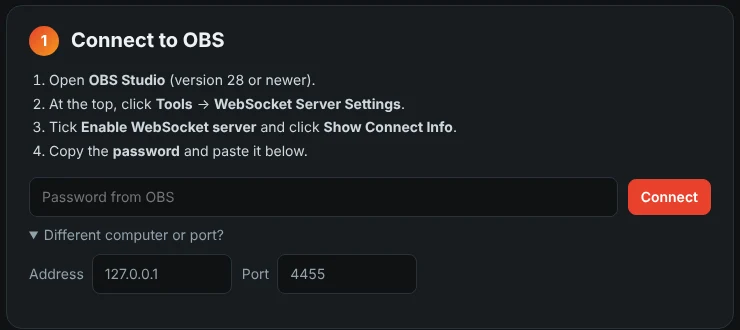
Legcast then finds its own files on your computer. If it can't, the assistant asks you to point to the overlay folder.
3Build your scene
Choose where you stream and Legcast builds the scene in OBS for you:
- TikTok: a vertical 1080 × 1920 scene, camera on top, scoreboard underneath.
- YouTube / Twitch: a 16:9 scene with the camera full screen.
- Both: two scenes, switch between them in OBS.
Streaming with two cameras, one on the board and one on you? Tick the two-camera option. No second webcam? Use your phone, see Extras.
Then pick a style. Basic has the Legcast theme; Premium and Pro have all four themes and your own colours.
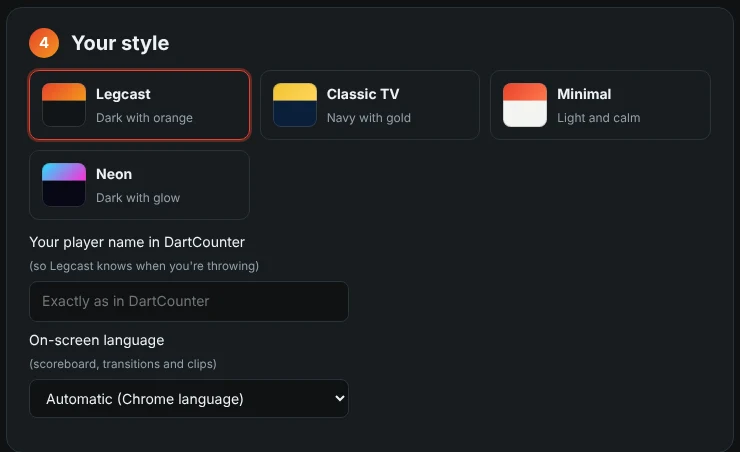
Fill in your player name exactly as it appears in DartCounter. That's how Legcast knows when you are throwing and when your opponent is.
4Play a match
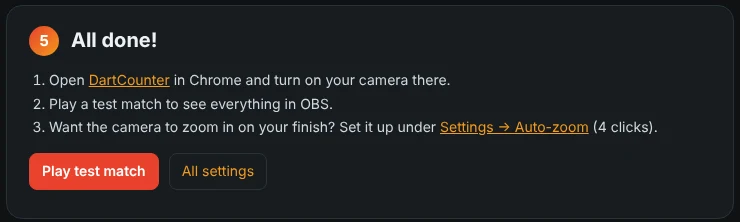
Open DartCounter in Chrome, turn on your camera there and start a match. Legcast takes it from the first dart: scoreboard, camera switching, zoom, replays and cards all run by themselves.
Playing online? Your opponent's camera can show up in your stream. Ask them first if that's fine; you can switch it off in the settings.
5Add your licence key
When your trial ends, choose a plan on the pricing page. After paying you get an email from our payment provider Polar with a link to your customer portal. Your key is there and starts with LEGCAST-.
Click the Legcast icon in Chrome, or open Settings → Licence, paste the key and click Activate.

One key works on two computers. Moving to a new PC? Disconnect the key on the old one first, or manage your devices in the Polar customer portal.
6Extras
Auto-zoom. With a fixed camera on your board, Legcast zooms in on the treble and on your finishing double. Set it up once under Settings → Auto-zoom: take a snapshot and click four points on the board.
Your phone as a camera. Under Settings → Cameras, choose Phone via QR code and scan the code with your phone. No app needed, and your phone and PC don't have to be on the same network.
Clips. Pro saves a clip of every 180, big finish and won leg, straight from OBS in the same quality as your stream. You find them in the OBS recordings folder.
Now playing. Premium and Pro can show the current Spotify song for a few seconds. Switch it on under Settings → Now playing.
Language. The extension and everything on screen are available in English, German and Dutch. Pick the language at the top of the settings.
7Something not working?
- Legcast can't connect to OBS. Check that OBS is open, the WebSocket server is enabled and the password is correct. The default port is 4455.
- The camera stays empty or frozen. Reload the DartCounter tab once (F5), especially after updating Legcast.
- The scene looks wrong. Run the setup assistant again from the Legcast icon. It rebuilds the scene without touching your other OBS scenes.
- TikTok scene looks stretched. Your OBS canvas is landscape. Set it to 1080 × 1920 under OBS Settings → Video, or let the setup assistant do it.
Still stuck? Send us a message and we'll help you out.